2019年9月3日星期二

VIDENT iLink400 Software Update Guide

OBD360 will give you a step by step instruction on how to update software for VIDENT iLink400 in this post.
Note:
All iLink400 scan tool will be shipped without any Software installed. You can install any software from the following list at your choice by the update client iScanzilla.


Software Update
Step One- Install the Update Client
Visit www.videnttech.com to download the update client from
http://www.videnttech.com/support/


The file downloaded will be a compressed zip file. Open that file and run the installer inside it.
Alternatively, you can install the update client from the CD that comes in the product package.

Step Two – Create Your Vident Account.

Firstly you need to create an account with Vident.
Once installed, boots up the iScanzilla software, click the Register button.


Fill out the registration form and submit.


Alternatively, you can click the Sign Up button on the right upper side of our website to create an user account.


Step Three – Register Your product

When logged in iScanzilla, click the ‘Register Products’ icon.


On the ‘S/N Registration’ tab, put a tick in the box marked ‘001’ then enter the product’s serial number & password, and click Submit.
Please connect the scan tool with computer through the USB cable, select Setup > About to check the Serial Number and ‘Register Password”.


A confirmation box should be shown confirming successful registration.
Alternatively, you can register the product in the member center when logged in on our website.


Step Four – Download and Install Diagnostic Software
Now close the iScanzilla software, remove the TF card from your tool (making sure the tool is turned off first!) and connect it to the PC via a TF card reader.
Once Windows has detected the TF card, run the iScanzilla software and login again. After a few seconds, a list of the available software updates will appear.


Please select only one software you want to update, as you can ONLY have access to the update of this manufacturer in the future once it’s been selected initially. In case you want to install any other vehicle software, please contact
us or sign in your member center to purchase. Please refer to next chapter to buy extra software.
Click the Update button to download and install the software.

Once the software installed, you can go to Software Management to review the installed software.
Vident iLink400:
http://www.obd360.com/wholesale/vident-ilink400full-system-single-make-scan-tool.html

2019年8月11日星期日

Autel MaxiFlash J2534 Driver Setup & Network Configuration Guide

This instruction show you guide on how to install driver and configure network for Autel MaxiFlash J2534.

Autel MaxiFlash Pro J2534 is reliable, fast performance, and flexible; using the OEM software,it is capable of providing dealer-level programming capabilities for all makes,if it work with the AUTEL MaxiSys MS908 and AUTEL MaxiSYS Pro MS908P, Which can do more car

Procedures:
In order for the Pass-Thru Device to operate correctly with the re-flashing and diagnostic applications on the target PC, you will need to first install the MaxiFlash Pro J2534 device driver onto the PC that will control the device.
To setup the J2534 Pass-Thru device driver, you will need the followings:
 CD with the device driver program
 PC or laptop with USB ports
 J2534 Pass-Thru reprogramming tool
 USB cable NOTE: The following steps may vary depending on the operating system or components that are installed on your computer, but in general this is the standard installation process.
1) Insert the driver installation CD to your PC. The driver installation wizard will load momentarily.
2) Click on ―Next‖ on the welcome page.
3) Select ―Next‖ on the installation location and installation name. It is recommended not to change the default settings; otherwise the computer may have a hard time recognizing the driver.
4) Click ―Install‖ and the driver program will be installed onto your PC. NOTE: During this part of the process a MS-DOS style window will pop up and may remain on your screen for a short while, which is perfectly normal. Do not attempt to close the MS-DOS style window manually as this will prevent the device driver being installed successfully, it will close automatically when the device driver installation is complete.
5) Connect the Pass-Thru device to the PC with the supplied USB cable, a ―Found New Hardware Wizard‖ window will pop up.
6) Select ―Install the software automatically (Recommended)‖, click on ―Next‖, and Windows will search for the driver software automatically.
7) Select the ―MaxiFlash Pro‖ program and click on ―Install‖.
8) When the MaxiFlash Pro device driver program is successfully installed, you should be able to see the ―Maxi Flash Pro‖ entry in the Device Manager under ―Maxi Pass Thru Serial.

2019年7月10日星期三

How to Use Autel IM608 Reset Battery for BMW

Autel IM608 allows displaying the mileage reading of last battery replacement,
registering the battery replacement after replacing a new battery and informing the power management system that a new battery has been fitted to the vehicle.

Autel IM508 System

If the battery change is not registered, the power management system will not function properly, which may not provide the battery with enough charging power to operate the car and limit the functions of individual electrical equipment.

To display the battery history
1. Tap the Service application button from the MaxiIM Job Menu.
2. Tap BMS button and wait for the vehicle manufacturer screen. You can tap VIN Scan or the vehicle make to acquire vehicle VIN information and tap Yes to confirm. See Vehicle Identification on page 34 for detail.
3. Tap Resetting the information to zero on power supply when replacing the battery in the EPB function list, the list may vary for different vehicles being tested.


4. The stored power supply information is reset using this service.Resetting to zero should only be performed when replacing the (main) battery. Once you confirm all the information displayed, tap Continue to proceed.Autel MaxiIM IM608


 5.Tap Start to reset the information to zero.http://www.auteleshop.com


6. Once the reset is completed, the screen displays. Tap Continue.


7. For the Battery Monitoring Sensor (BMS) to calculate the correct battery charging level, the vehicle must be in Sleep mode for a minimum of 4h after reset. In some cases, 6h in Sleep mode may be necessary. Read the onscreen instructions carefully and follow the instructions to ensure vehicle proper functioning.


http://www.auteleshop.com/wholesale/autel-maxiim-im608-advanced-immo-key-programming.html

2019年7月7日星期日

Autel MD808 Pro FAQs and Customers Real Reviews

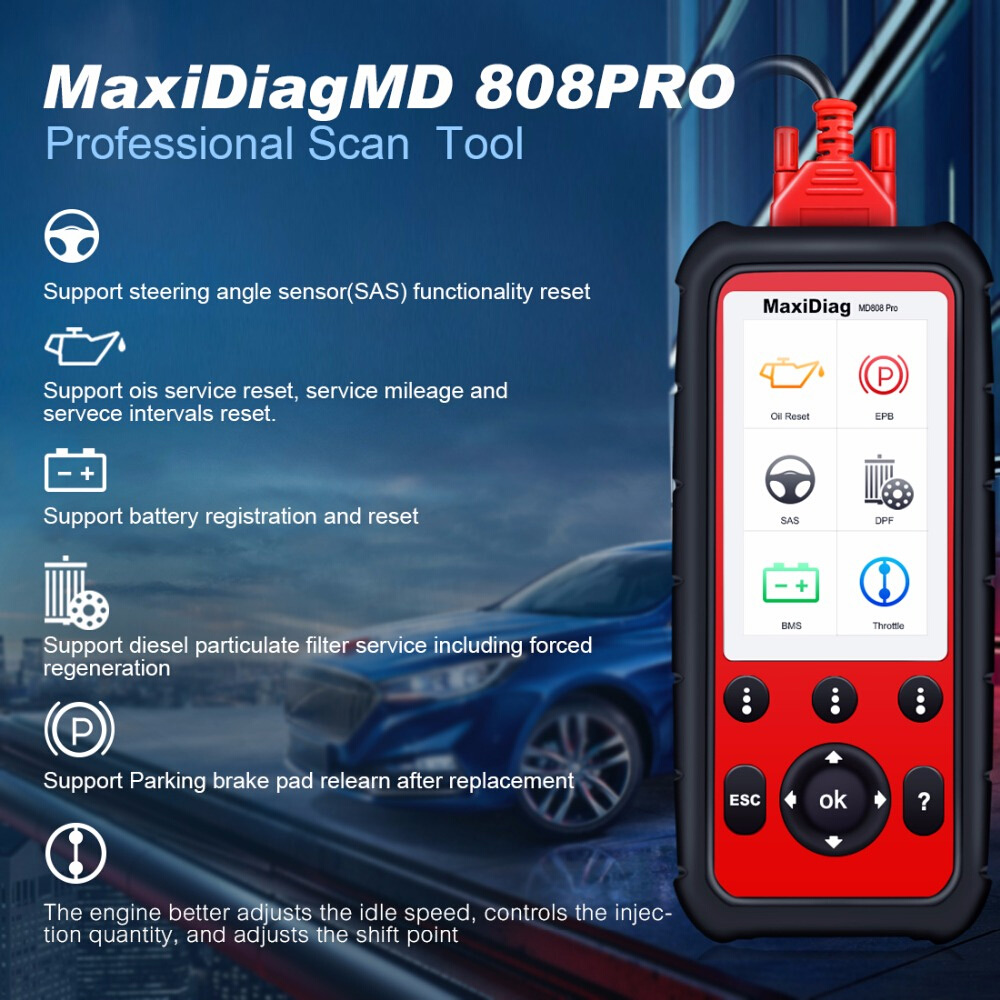
Autel MD808 pro scanner is a nice and sturdy device that will allow you to diagnose different car makes and models as long as they are OBD2 compliant and manufactured from 1996 or newer. This includes domestic, European, and Asian vehicles. The diagnostic scanner is easy to use, compact and affordable. It also performs a wide range of functions making it ideal for DIYers, professional mechanics, and technicians.

The MD808 will help you save money as it offers free lifetime updates and upgrades. You can as well save data on the 16GB memory card and in case of any defects on the product; the manufacturer offers a one-year warranty. I hope this Autel MD808 Pro review will help a lot to make a buying decision.


Autel MD808 Pro FAQs:

Q1: Autel MD808 have any advantage over the MD802?
A1: MD808 is much more advanced than MD802.MD808 supports to read and clear trouble codes, control and test BMS /SAS /DPF systems,and reset steering angle sensor (SAS) functionality. These functions MD802 is unavailable to do.Hope it can meet your demands.

Q2: Will this be able yo bring up Transfer Case codes?
A2: Yes,this md808 can read/erase codes on Engine, Transmission, SRS and ABS system as well as lot of special functions.

Q3: Will this unit interface with all of the modules and eletronic controls on a Toyota Prius? And specifically to meter in coolant and bleed brakes?
A3: This md 808 can work on your Toyota Prius on four systems , if wanna get a all system supported product, you can have a look for the MD802 full system or md808 pro.And for metering in coolant and bleed brakes,you may have a look for Autel MK808.

Q4: Autel launched another new product md808. what’s the differences between md808 pro and md808?
A4: MD808 pro is an more advanced professional scan tool than MD808. Though MD808 and MD808 pro are armed the same hardware, MD808 pro has more powerful built-in software system than MD808 pro. MD808 can only access to Engine, Transmission, ABS, and Airbag (SRS) systems while MD808 pro support Read/Clear Codes and Live Data functions for ALL systems.

Q5: Hi this able to bleed abs system on mb gl550?
A5: It will support reading and clearing all codes in all modules. But it would not support the brake bleeding functions. I think you need MX808 to bleed abs system.

Q6: Shops that would use Autel MaxiDiag MD808 Pro?
A6: General repair shops (Perfect for servicewriters), body shops, used car dealerships, auto repair shop, brake facilities, DPF Auto Repair shop, and transmission repair shops

Q7: How do I know if my Autel scanner is genuine or not?
A7: First and foremost, you should buy an Autel scanner from an authorized dealer. If you buy it from an unknown source, you risk being duped or being sold the wrong product. Every Autel scan tool comes with a serial number. After you purchase the device, you need to register it in order to get free software update/upgrade and as well as warranty. As a result, if you try to register the code reader with Autel and it fails, just know that your device is counterfeit. All-in-all, Autel is a reliable company and having a fake product is next to impossible.

Q8: Does the Autel MD808 offer its users with free lifetime updates?
A8: This is where Autel wasn’t clear about its product. In the description, it is written that the product comes with free lifetime updates but it is not. Most users have stated that the free software updates are provided for 3 years and from then onwards, you will have to pay for updates and upgrades. The manufacturer should be clear about this so that buyers are not duped into buying the product.

Q9: I am looking for a scanner that would let me access the onboard computer so that I am able to adjust the vehicle performance which would maximize my fuel economy. Will this model do this procedure or can you suggest a model that can do this
A9: MD808 Pro will tell which fuel injector is faulty and It also able to read fuel trim. If you want full functioning scanner, then you have to increase your budget. You can take a look at the Autel MX808

Q10: This MD808Pro would not link up to a new 2019 Toyota Tacoma. I called US support and was told that I would have to wait at least one year for the update to the device that will cover this and other new vehicles. The support person told me that I would purchase a much more expensive reader with a paid subscription to be able to interact with new vehicles. Thanks Autel for not advising this in your advertising for this product. This MD808Pro will be sitting in my cupboard collecting dust for at least one more years.
A10: Yes, that’s right. If you buy the most recent car model, then low price scanner like Autel md808 pro will not support. They need time( at least one year) to include that new car model with the scanner. All scanner brands follow that type of tactic. Because they need to write a new program for the latest car model to support the scanner


Autel MD808 Pro Reviews:

Review 1:
I did try it out and it did work very well. I work as a gm technician and i use the ms906ts model from autel and they both seem to read the same data. I would recommend any autel product to anyone. They have great products and great technical support. I did the current update on this unit which was simple. The newest update gave you the feature to do the updates through usb. I had to remove the mico sd card to do the updates the first time. You will need a micro sd to sd card adapter if you get a unit with the older software installed.

Review 2:
Autel MD808 Pro was recommended by tire shop because it’s a well made quality product capable of high speed use for sports cars. Product installed and programmed easily for use in my ’06 corvette.

Review 3:
I purchased this to help diagnose an ABS issue and to clear the trouble code(s) when the issue was fixed. It handled these tasks without issue. The ability to see sensors operate in real time and plot them on a graph is invaluable.

Review 4:

This is a new launched product of Autel. My friend bought a MD802 which works very good. This one is an updated version of MD802. It has a bigger screen and memory, and seems the scanning speed is a little bit faster scanning all systems. A very good diagnostic tool.

Review 5:
It clears code fast and works well. It’s an all system diagnostic tool and easy to use. The 16G memory card which enables update is a plus compared to MD802. Though it’s not a bi-directional tool, we won’t get that at this price.

http://www.auteleshop.com/wholesale/autel-maxidiag-md808-pro-all-system.html

2019年6月28日星期五

TOPDON ArtiPad I:How to Feedback Diagnostic Logs?

TOPDON ArtiPad I have diagnostic logs feedback function,you can feedback the your diagnostic logs to TOPDON engineer.


This item allows you to feedback your diagnostic problems to us for analysis and
troubleshooting.
Tap “Feedback”, a pop-up message will appear:

Tap “CONFIRM” to choose the vehicle diagnostic record page.

A). Tap the desired vehicle to enter the TOPDON ArtiPad I Diagnostic Tool diagnostic log selection page.

Select the check box and tap “Submit”. A screen similar to the following will
appear:
Choose the failure type and fill in the detailed failure description in the blank text
box and telephone or email address. After inputting, tap “Submit Result” to send
it to us.

B). Tap “History”, the diagnostic logs marked with different color indicate the process status of the diagnostic feedback. Green/Red/Blue means the diagnostic feedback is fixed/pending/in process respectively.

For more details about  TOPDON ArtiPad I Diagnostic Tool,please check here:
http://www.uobdii.com/wholesale/topdon-artipad-i-diagnostic-tool.html


2019年6月19日星期三

How to Update Autel MaxiCheck Pro Software?

Here auteleshop.com share the software update procedures of Autel MaxiCheck Pro,hope it helps!


Procedures:
This function allows you to update the scan tool software through a computer.
Register the Tool
User would update the scan tool ONLY after you had registered the
tool on our website http://pro.autel.com. Then you could download
software, update online, retrieve information and get warranty service.
You can use a Mac or a Windows-based computer to download the
suitable version and proceed.

NOTE: Prior to registration, please confirm your network is working properly.
1. Visit our website http://pro.autel.com.
2. On the Sign In page, input your account ID and other information to log in, if you already have an account.
3. If you are a new member to Autel and do not have an account yet, click the Create Autel ID button on the left side.
4. Enter the required information in the input fields, read through Autel’s Terms and Conditions and tick on Agree, and then click Create Autel ID at the bottom to continue.
5. The online system will automatically send a confirmation email to the registered email address. Validate your account by clicking the link provided through the mail. A product registration screen opens.
6. Select the product model of your tool, enter the product serial number and password on the Product Registration screen, and click Submit to complete the registration procedure.
NOTE: Please use the About function to find out the Product Serial No. and Register Password.

Update Procedure
Autel frequently releases software updates that you can download. The Update feature makes it very easy to determine and get exactly what you need.
1. Install Maxi PC Suite through the included CD, or download the applications in our website: www.autel.com or our distributors’ site. You can use a Mac or a Windows-based computer to download the suitable version and proceed.
2. Make sure that your computer is connected to the Internet.
3. Load the SD card of the scan tool to your PC.
4. Run the Maxi PC Suite. Wait for the Log In window to pop up


5. Enter your Autel ID and password and wait for the Update window to display. If you forget your password unintentionally,you may always click the [Forget Password?] to link to our website and get your password back.
6. Select the product type and serial number, click OK to continue.
7. In the Update window, select the items you want to install.Usually, you should install all available updates.


Generally, there are two ways to update MaxiCheck Pro programs:
Batch Update
Select the programs that you would update by clicking on the check boxes next to those items. Then click the Update Selected Items button on the right side of screen.

Or, click on the Select All checkbox on the right side of screen and all updatable items will be selected automatically. Then click the Update Selected Items button on the right side of screen.

Check the updating process by observing the upper left progress bar [Downloads] and upper right progress bar [Installs]. You may also find progress information in the Status column of updated items.

Anytime you could click the Pause button on the right side of screen to suspend all progresses, and the state of those suspended items would change to stopped.

To resume updating process, you may need to select those suspended items again, and then click the Update Selected Items button. The progress will resume from the break point.

When the downloading is completed, the downloaded programs will be installed automatically. The new version will replace the old version.

Single Update
Find out the desired updating item and click the Install button in the same line. With updating in progress, the Install button changes to Pause.

Check the updating process by observing the upper left progress bar [Downloads] and upper right progress bar [Installs]. You may also find progress information in the Status column of updated items.

Anytime you could click the Pause button in the line to suspend this progress, and the state of this item would change to stopped.

To resume updating process, click the Install button in the line again. The progress will resume from the break point.

When the downloading is completed, the downloaded program will be installed automatically. The new version will replace the old version.

And for more details,please check here:
http://www.auteleshop.com/wholesale/autel-maxicheck-pro.html

2019年6月4日星期二

How to Use CG100 Prog Repair Honda Airbag

How to use CG100 PROG III to repair airbag on Honda ECU 77960-T9A-F411-M2 R5F2154 in step-by-step procedure.CGDI BMW Programmer

Model: Honda
No.: 77960-T9A-F411-M2
Chip: R5F2154

1.Power off the vehicle, remove the airbag computer, check the style and the chip.
cg100-prog-iii-repair-airbag-for-honda-01